 WebPad Studio
Your research notebook, right next to the page.
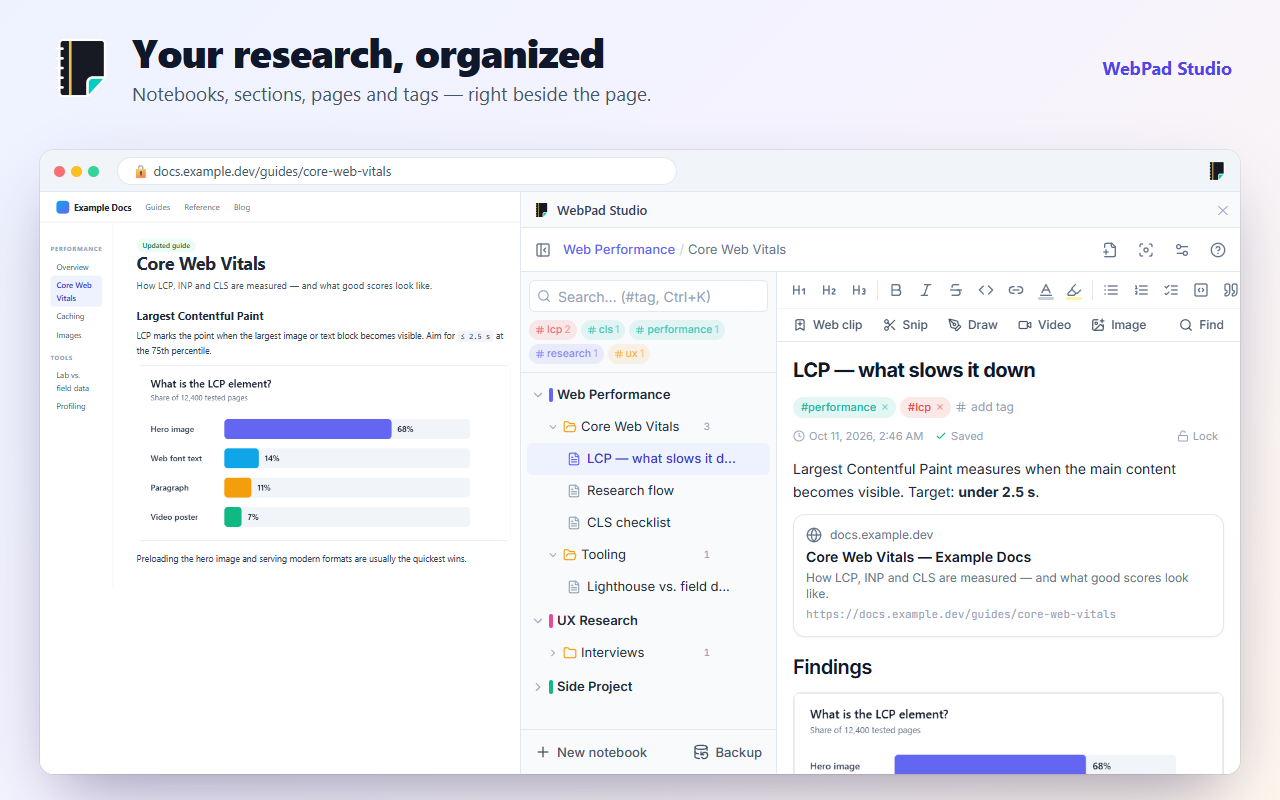
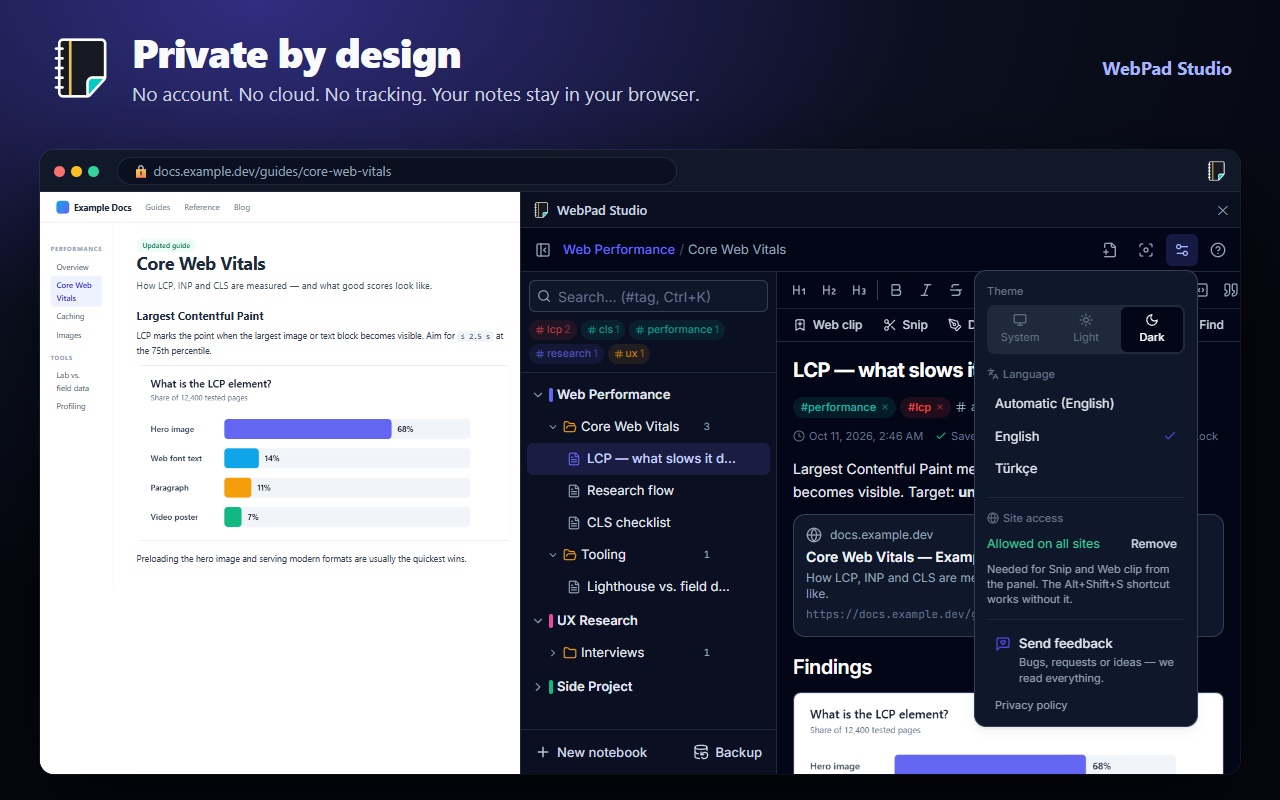
WebPad Studio is a notebook that lives in Chrome’s side panel. Take notes without switching tabs, capture parts of web pages and sketch your ideas.
- No account needed
- Notes stay on your device
- English and Turkish
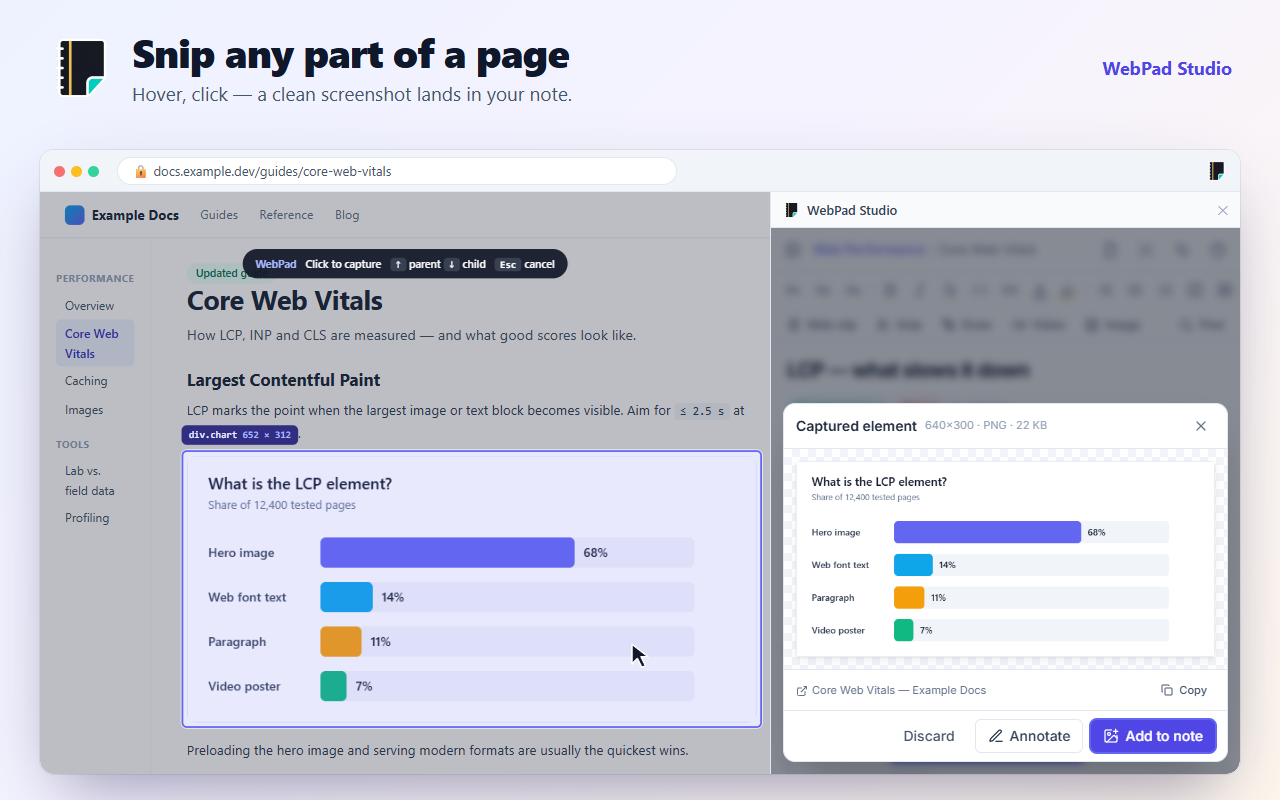
Snip any part of a page
Press Snip or Alt+Shift+S, hover over a chart, a code sample or a product card and click. A clean, cropped screenshot lands in your note with a link to its source. You can also drag to select an area.
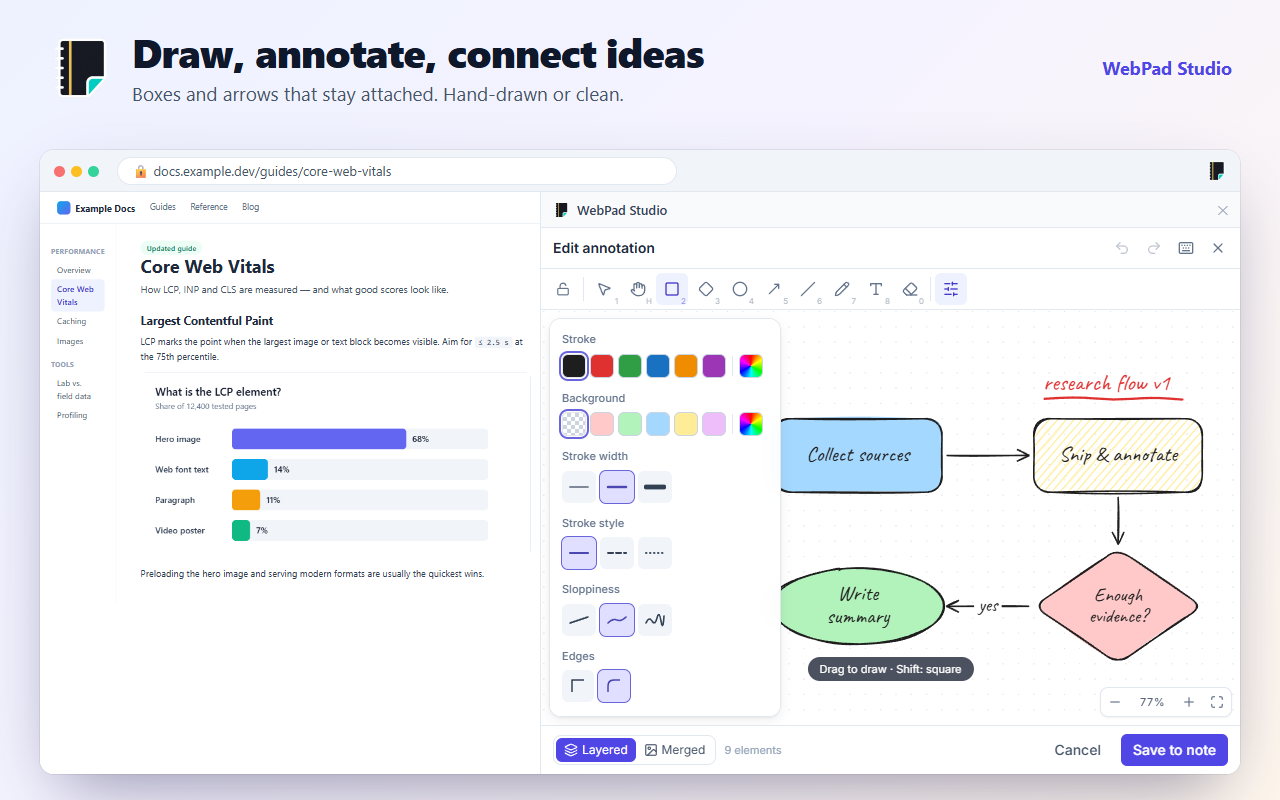
Draw, annotate, connect ideas
Mark up screenshots or build a flowchart on a blank canvas. Arrows stay attached as boxes move; there are 40+ ready-made templates, grouping, locking and a dark canvas.
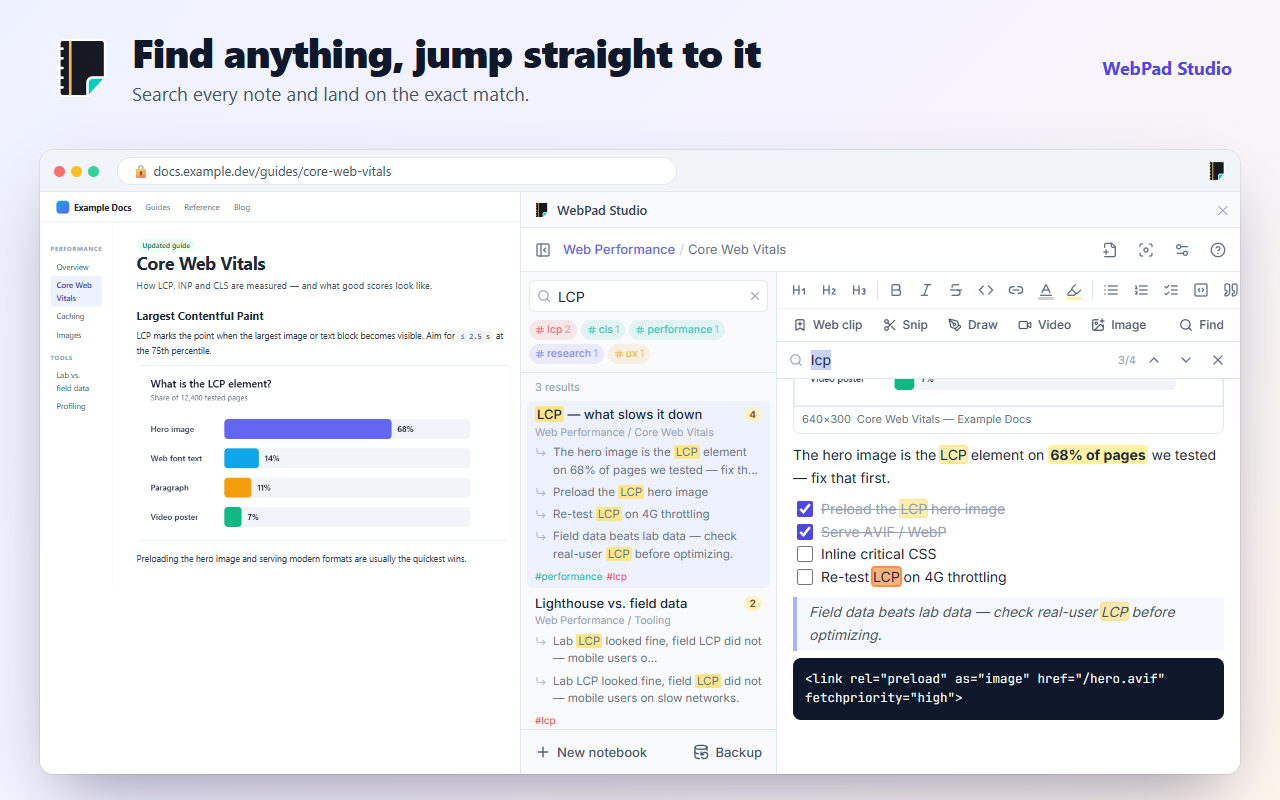
Find it, jump straight there
Search every note with Ctrl+K; each result lists its matches one by one, and a click takes you right to that word.
Small, but complete
Tables and charts
Build a table and turn it into a column, line or pie chart in one click. Pasting from Excel works too.
Sketch pages
Pages that are an endless drawing canvas instead of text: brainstorms, flows, screen designs.
PDF and Word
Export a page or a whole notebook, with links and pictures, as PDF or Word.
Google Drive sync
If you like, notes are backed up to your own Drive automatically — the same notebooks on every computer.
Encrypted backups
Back up everything to a single file, optionally password-protected, and pick up where you left off on another computer.
Focus mode and lock
Hide everything but your text, and lock finished pages so they don’t change by accident.
Light and dark
Follows your system, or pick one. The drawing canvas goes dark too.
Keyboard friendly
Markdown shortcuts, Ctrl+K search, Ctrl+F find in page and one-key shortcuts for every drawing tool.
Private by default
WebPad Studio needs no account, server or tracking. Your notes live in your browser and never come to us.
- No sign-up, no ads, no analytics.
- The extension touches a page only when you Snip or Web clip it.
- Google Drive sync is optional and only writes to a hidden folder in your own Drive.
Questions
Is it free?
Yes. Every feature is free today. An optional Pro plan for some advanced features may come later; it will be announced in advance.
Where are my notes stored?
On your own computer, in the browser’s storage. You can export a backup file or turn on Google Drive sync.
How do I move to another computer?
Backup → Export gives you a single .webpad file; open it with Import on the other computer. Google Drive sync does this automatically.
Which browsers does it work in?
Chrome 116 or later. Chromium browsers such as Edge and Brave can install it from the Chrome Web Store too; Google Drive sync works in Chrome only for now.
Why doesn’t Snip work on some pages?
Chrome doesn’t let extensions touch its own pages or the Web Store. Use “Use screen sharing” in the warning that appears there to capture it anyway.
I found a bug or have an idea.
Use Settings → Send feedback in the extension, or send an e-mail. We read everything.
Do your next research in the side panel.
Installs in seconds, no account to create.
Add to Chrome — it’s free